Panduan Lengkap Cara Install Trae AI - AI Coding Assistant Gratis
Trae AI adalah AI coding assistant yang sedang populer di kalangan developers. Berbeda dengan GitHub Copilot yang berbayar, Trae AI menawarkan gratis AI coding assistant dengan capabilities yang mengesankan.
Dalam panduan komprehensif ini, kita akan membahas:
- Apa itu Trae AI dan fitur utamanya
- System requirements dan prerequisites
- Instalasi Trae IDE (standalone)
- Instalasi Trae VS Code Extension
- Setup dan konfigurasi awal
- Usage examples dan tips produktivitas
Apa Itu Trae AI?
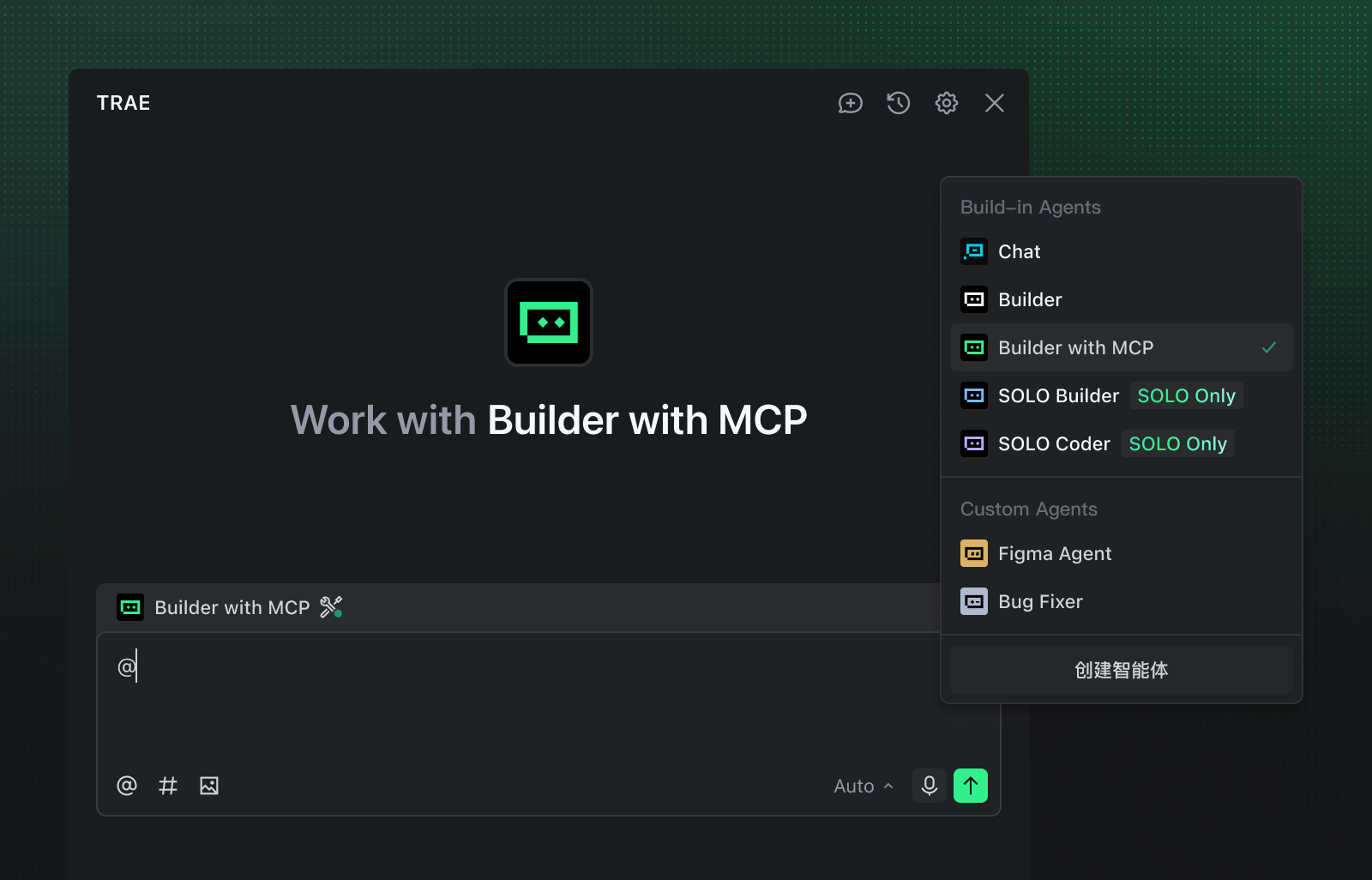
Trae AI adalah AI-powered code editor yang dirancang sebagai "10x AI Engineer" - assistant yang dapat independently build software solutions untuk Anda. Tool ini menawarkan:
- AI-Native IDE - Bukan sekadar extension, tapi AI yang terintegrasi ke dalam editor
- Gratis untuk Digunakan - Tidak seperti Copilot yang berbayar
- Multi-Language Support - Python, JavaScript, TypeScript, Go, Rust, dan banyak lagi
- Intelligent Code Generation - Generate functions, classes, dan entire files
- Code Understanding - Explain complex code dengan context yang lengkap
- Agentic Capabilities - Bisa autonomous planning dan execution
- Import Settings - Mudah migrate dari Cursor atau VS Code
System Requirements
OS Requirements:
- Windows: Windows 10 64-bit atau lebih baru
- macOS: macOS 11 (Big Sur) atau lebih baru
- Linux: Ubuntu 20.04+ atau distros modern lainnya
Hardware:
- RAM: 4 GB minimum, 8 GB recommended
- Storage: 500 MB free space untuk instalasi
- Processor: Intel Core i5 / AMD Ryzen 5 atau lebih baik
Metode Instalasi
Trae AI menyediakan dua cara untuk digunakan:
- Trae IDE - Standalone AI code editor
- Trae Extension untuk VS Code - Plugin untuk Visual Studio Code
Instalasi Trae IDE (Standalone Editor)
Step 1: Download Installer
- Kunjungi trae.ai
- Click tombol "Download" atau "Get Started"
- OS akan terdeteksi secara otomatis
- Download installer yang sesuai:
- Windows:
Trae-Setup-x.x.x.exe - macOS:
Trae-x.x.x.dmg - Linux:
Trae-x.x.x.AppImage
- Windows:
Step 2: Install di Windows
- Double-click installer
.exe - Jika Windows SmartScreen muncul warning:
- Click "More info"
- Click "Run anyway"
- Ikuti installation wizard:
- Pilih installation directory (default:
C:\Users\[Username]\AppData\Local\Programs\Trae) - Pilih "Create desktop shortcut" (recommended)
- Pilih "Add to PATH" (recommended untuk command line access)
- Pilih installation directory (default:
- Click "Install"
- Tunggu 1-2 minutes untuk installation selesai
- Launch Trae saat diminta
Step 3: Install di macOS
- Open file
.dmgyang didownload - Drag Trae icon ke Applications folder
- Eject disk image setelah selesai
- Buka Launchpad atau Applications folder
- Double-click Trae untuk launch
- Jika Gatekeeper warning muncul:
- Click "Open" jika prompted tentang unidentified developer
- Atau go to System Preferences → Security & Privacy → Click "Open Anyway"
Step 4: Install di Linux
Menggunakan AppImage (Universal Linux):
- Download
Trae-x.x.x.AppImage - Buka terminal, navigate ke download location
- Buat file executable:
chmod +x Trae-x.x.x.AppImage - Launch:
./Trae-x.x.x.AppImage - Atau move ke applications directory:
sudo mv Trae-x.x.x.AppImage /usr/local/bin/trae
Instalasi Trae Extension untuk VS Code
Step 1: Prerequisites
- Visual Studio Code versi 1.60.0 atau lebih baru
- Stable internet connection untuk AI features
Step 2: Install Extension
- Buka VS Code
- Go to Extensions view (Ctrl+Shift+X atau Cmd+Shift+X)
- Search untuk: "Trae AI: Coding Assistant"
- Click "Install"
- Restart VS Code saat diminta
Step 3: Setup Extension
- Setelah restart, Trae icon akan muncul di activity bar
- Click icon untuk sign up atau sign in
- Buat akun baru atau gunakan akun yang sudah ada
- Verifikasi email jika new user
Setup dan Konfigurasi Awal
1. First Launch Configuration
Saat pertama kali membuka Trae IDE atau extension:
- Welcome screen akan muncul
- Pilih theme:
- Light
- Dark
- System (follow OS setting)
- Pilih font size dan font family
- Configure keybinding style:
- VS Code (recommended untuk yang sudah familiar)
- Sublime Text
- Vim
- Emacs
2. Import Existing Settings (Optional)
Salah satu keunggulan Trae adalah mudah migrate dari editor lain:
- File → Import Settings
- Pilih source:
- Cursor
- VS Code
- JetBrains IDE
- Navigate ke settings file:
- VS Code:
settings.json - Cursor:
settings.json
- VS Code:
- Trae akan mengimpor:
- Keybindings
- Extensions
- Themes
- User settings
3. Create atau Open Project
- Create New Project:
- File → New Project
- Choose template atau blank project
- Select location
- Open Existing Folder:
- File → Open Folder
- Navigate ke project directory
- Trae akan index dan scan codebase
- Clone Git Repository:
- File → Clone Repository
- Paste repository URL
- Select destination folder
Core Features dan Cara Menggunakan
1. AI Chat Panel
Access: Ctrl+Shift+K (Windows/Linux) atau Cmd+Shift+K (Mac)
Fitur:
- Ask questions tentang code
- Request implementations
- Explain complex logic
- Debug issues
- Generate documentation
Contoh penggunaan:
User: "Buatkan function untuk validate email dengan regex dan error handling"
Trae: [Menghasilkan complete function dengan documentation]
2. Inline Code Completion
Trigger dengan mengetik atau Ctrl+Space
- Trae suggests code secara real-time
- Multiline suggestions
- Context-aware (mengerti project structure)
- Accept: Tab atau Enter
- Dismiss: Esc
3. Code Explanation
- Highlight code yang ingin dijelaskan
- Right-click → "Explain with Trae"
- Atau gunakan keyboard shortcut
- Penjelasan muncul di side panel
4. Refactoring Suggestions
- Highlight function atau class
- Right-click → "Refactor with Trae"
- Trae akan suggest improvements seperti:
- Performance optimization
- Code readability
- Best practices
- Security fixes
5. Multi-File Operations
- Request changes across multiple files
- Contoh: "Tambah logging ke semua API functions"
- Trae identifies relevant files
- Applies changes dengan preview
Tips untuk Productive Coding dengan Trae AI
1. Provide Context
- Explain project structure dan goals
- Describe coding conventions yang Anda gunakan
- Mention constraints (performance, security, dll)
2. Be Specific dengan Prompts
- Bad: "Fix this function"
- Good: "Refactor function ini untuk use async/await instead of callbacks, handle edge cases, dan add proper error logging"
3. Iterate dan Refine
- Jangan accept first suggestion blindly
- Ask untuk alternatives: "Coba pendekatan berbeda"
- Request explanations: "Kenapa kamu gunakan cara ini?"
4. Review Code Thoroughly
- Always review AI-generated code
- Check untuk security vulnerabilities
- Verify best practices diikuti
- Test thoroughly sebelum merging
5. Learn dari Trae
- Read explanations untuk understand patterns
- Ask "why" untuk learn reasoning
- Study generated code untuk improve skills
Troubleshooting
Issue: Installation Fails
Solution:
- Check OS version meets requirements
- Disable antivirus temporarily
- Run installer as administrator
- Verify available disk space
- Download installer lagi (corrupt download possible)
Issue: Extension Not Loading
Solution:
- Verify VS Code version (must be 1.60+)
- Reload VS Code window (Ctrl+R / Cmd+R)
- Check extensions list untuk "Trae AI: Coding Assistant"
- Disable conflicting AI extensions
- Restart VS Code completely
Issue: Poor AI Suggestions
Solution:
- Provide more context tentang project
- Be more specific dengan prompts
- Check internet connection
- Increase context window dalam settings
- Ensure codebase is properly indexed
Issue: Performance Lag
Solution:
- Close unnecessary files
- Increase RAM allocation
- Reduce AI features jika needed
- Use SSD untuk better performance
- Disable other resource-heavy extensions
Comparison: Trae vs Alternatives
| Feature | Trae AI | Cursor | GitHub Copilot |
|---|---|---|---|
| Price | FREE | $20/month | $10/month |
| AI Models | Multiple models | GPT-4, Claude | GPT-4 |
| IDE | Standalone + VS Code | Fork of VS Code | Extension for multiple editors |
| Context Window | Large | Large | Limited |
| Offline Mode | Partial | No | No |
Best Practices
Security:
- Jangan let Trae handle secrets atau API keys secara langsung
- Review generated code untuk security issues
- Use environment variables untuk sensitive data
- Keep dependencies updated
Code Quality:
- Treat Trae sebagai assistant, bukan replacement
- Understand generated code thoroughly
- Maintain consistent coding style
- Add comprehensive tests
- Document complex logic
Workflow:
- Start session dengan project overview
- Use Trae untuk boilerplate generation
- Leverage untuk refactoring legacy code
- Generate documentation secara otomatis
- Always review dan test changes
Conclusion
Trae AI adalah powerful dan gratis alternative untuk AI-powered coding. Dengan standalone IDE dan VS Code extension, Trae offers flexibility yang tidak dimiliki oleh kompetitor berbayar.
Key advantages:
- 100% gratis untuk digunakan
- AI-native architecture
- Multi-model support
- Easy migration dari editor lain
- Actively developed dan improved
Untuk developers yang mencari AI coding assistant tanpa biaya berlangganan, Trae AI adalah excellent choice. Coba gratis, explore features, dan decide apakah cocok dengan workflow Anda!
Butuh help setup development environment dengan AI tools?
TANTRA membantu businesses dan developers implement AI-powered development workflows. Dari setup sampai training, kami ensure team Anda productive dengan latest tools.
Hubungi kami untuk konsultasi gratis.